Which printer should you buy?

Which printer should you buy for the office?

Inkjet or laser? Black and white or colour? To find the best printer that will deliver high-quality prints at a pleasingly low cost, read our expert guide about which printer should you buy?

The most important question to consider when buying a new printer is: inkjet or laser? Other key questions include whether you want to scan and copy as well as print? Are happy with just black and white or do you want to print in colour? And do you want wireless printing features, such as Apple AirPrint?

“Computers I can live with, but printers I hate from the bottom of my heart” says Adrian Chiles in his opinion computing column of The Guardian.

Which printer should you buy

Looking for the best printer to suit your needs? The abundance of choice is good – it means no matter what type of printer you need, you’ll be able to find one that’s perfect for you.

Which printer should you buy?

Do you need printouts fast, or is quality more important? What sort of documents will you print the most? Will you print from one computer, or lots of devices? How much do printing costs matter to you?

Printers can generally be split into two main categories, based on the ink technology they use: inkjet or laser.

They’re also referred to in terms of their features – such as wireless printers, or the tasks their best suited to – such as home office printers. Below you can find out the characteristics of the different types of printers to decide which will suit you best.

How much should I spend?

You can buy a new inkjet printer for less than £50 and you don’t need to spend much more to get a good one. For around £150, you’ll get a high-quality all-in-one, colour laser printer.

The more you spend, the more features you’ll get from your printer. But, these days, even an all-in-one printer/scanner with wi-fi and Apple AirPrint could only cost you £40. For more than £100, you’ll get home-office features such as an automatic document feeder, or automatic double-sided printing.

What is an inkjet printer?

Inkjet printers are great all-rounders. They can handle text-heavy documents such as a student’s coursework or minutes from a meeting, but they can also print photos – and do a better job of it than a laser printer. They’re quiet and unobtrusive, and they also take up less desk space than a laser.

However, inkjets are usually more expensive to run than laser printers, costing you more in ink per printed page than you would pay for laser toner. That’s not necessarily the case with a few business-focused inkjet printers, but as a rule of thumb, inkjets cost you less up front, but more in the long term.

  • Pros: Smaller and cheaper than laser printers, can produce good-quality colour prints
  • Cons: More expensive running costs, slower to print black text pages than a laser

What is a laser printer?

Laser printers shine when it comes to printing a lot of black text, and while colour models are more expensive than colour inkjets, they also produce professional-looking business graphics. They’re normally faster than inkjets when it comes to this kind of job and can handle a heavier workload if you’re planning to print a lot of pages every month.

What’s more, while the toner cartridges are expensive, each one prints a lot more pages than an inkjet cartridge, so the actual cost per black-and-white or colour page is usually much less. However, laser printers are usually bulkier and noisier than the equivalent inkjet printer and will take up more space on your desk.

While they can produce good graphs and charts, colour laser printers aren’t much good at printing photos. Stick to an inkjet if you’re likely to print off your holiday snaps.

  • Pros: Fast prints and good-value printing for black-and-white pages
  • Cons: More expensive to buy, bulkier and often noisier than inkjets.

What is an all-in-one printer?

You can buy straightforward inkjet or laser printers, but a device that scans and copies as well won’t cost you a whole lot more. Most have wi-fi connectivity so that you can print from several PCs or laptops, not to mention tablets or smartphones. Some include a fax function, too.

Some all-in-one printers have an automatic document feeder (ADF) on top, which is handy for scanning and copying multi-page reports.

  • Pros: Can scan, photocopy and fax as well as print
  • Cons: Tend to be larger models that take up more space

What is a photo printer?

The term ‘photo printer’ covers a wide range of devices. To some, it’s an A4 all-in-one that’s really good at printing photos. To others, it’s a dedicated compact photo printer that only prints small photos. Or perhaps you want an A3 specialist model with dedicated photo cartridges and high-resolution print heads for lab quality photo prints.

Photo printers usually have memory card slots and a USB connection on the front, so you can plug in your camera’s memory card or connect the camera itself and print away, with or without a PC.

  • Pros: Optimised for photo-sized prints
  • Cons: Can’t guarantee better print quality than a more flexible regular printer

What is an A3 printer?

If you want to print large office documents, posters or photos to hang on your wall, then an A3 printer is the one for you. They cost more money and take up more desk space, but they can print on larger sheets of paper than a standard A4 printer. Some have a strong photographic or design focus.

  • Pros: Ideal if you need to print at poster-size
  • Cons: Take up significant space compared to regular printers

Black-and-white or colour: Which printer should you buy?

Black-and-white inkjets are now pretty much extinct, but you can still save a little money by opting for a ‘mono’ (black-and-white) laser printer. These are cheaper to buy than colour models, and if you’re mostly printing black text on white pages, you’ll also find them nice and cheap to run.

Colour makes your printer much more versatile, however. On the off chance you ever need to print a photo or colour document, a colour printer is worth having.

Should I consider a wireless printer?

Wireless internet, or wi-fi, is an excellent feature to look for in your new printer. It enables you to connect it to the internet without needing a cable. This means you can place your printer where you like in your home.

Once you have connected your wireless printer to the internet, you can access a range of online services, such as the free mobile printing apps offered by the big printer brands – HP, Epson, Canon and Brother.

Other online features to look out for include Apple AirPrint, enabling you to print from Mac, iPhone and iPad devices more easily, and Cloud Print, enabling simpler printing from Google programs and services.

Still undecided?

Technology can be a mine field. Do you buy on price, make and model or recommendation? Which printer should you buy? Let us take the stress away from you. Contact the LIS Help Desk and speak to one of our friendly advisors. We spend time finding out about your business and requirements. We will then recommend the best option to suit your needs. When you speak to a LIS technician, you can be sure to receive, honest impartial advice.

LIS – SECURING YOUR DIGITAL WORLD

#technology #printers #hometech #officetech #ITSupport

Best tech for the home office

It looks like working from home is still going to be big in the future, with many of us staying at home indefinitely. So, we need all the right tech, don’t we? The Financial Times have suggested some of the best tech for the home office.

Best tech for the home office

Transforming your bedroom, living room or spare room into a home office space until further notice?
These are the top best tech for the home office picks worth investing in now

Working from home brings its own set of challenges but having the right tools on hand can help you stay productive. One of the biggest challenges of working from home is setting up a home office with the right tools. However, once you have got everything in place, it’s easier to get your work done.  

Even if you do not have a ton of space or a dedicated room to turn into a home office, you can still have a comfortable and productive work-from-home setup. All you need is a table, chair, and a few key pieces of tech.

Best tech for the home office: The essentials

We have compiled this handy list of the best work-from-home tech to help you increase your productivity. The main tech essentials everyone needs to work remotely are reliable internet and a laptop, but we also recommend getting a monitor, so you have a bigger screen to work from as well as a decent keyboard and mouse. With these gadgets, you will feel much more comfortable working than you would if you had to squint over your small laptop screen all day.

Beyond those main tech gadgets, you may also want to get a few more accessories, so we have added others that are enjoyable to have, including everything from headphones and speakers to webcams and smart lights.

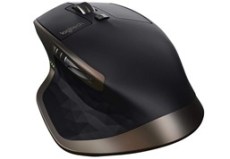
Wireless mouse Wireless mouse

Logitech’s MX Master Wireless Mouse is our top pick for the best computer mouse for good reason. With an ergonomic design that is comfortable to use for hours on end and you can customize the functions of its buttons and the speed of the scroll wheel. It helps limit the amount of wrist and hand fatigue at the end of a day. It’s also wireless, so it’s an excellent mouse to have in your home office

Bluetooth keyboard Bluetooth keyboard

Logitech’s K380 Multi-Device Bluetooth Keyboard has a compact design and the keys are responsive for typing. It does not have a number pad as this is a no-frills option. It is wireless, too, so for the small home office setup doesn’t look cluttered by a bunch of cables.

Gel wrist rest for your mouse Gel wrist rest

To limit wrist fatigue use Kensington’s ErgoSoft Wrist Rest. It is essentially a small gel-filled wrist pad that you can position exactly where you need it. The sticky underside keeps it from shifting around on the table. Ideal to have the option to angle it or remove it as needed throughout the workday.

A conference speaker phone conference speaker phone

Unless it is a quick call, using headsets or a phone against your ear is not ideal. Terrible sounding speakers on a phone or laptop is also not great. Use the PowerConf Bluetooth Speakerphone from Anker. Designed for group conferences and is portable. Due to the sound quality it produces and that has six microphones, it can pick up voices clearly regardless of where in the room.

A comfy office chair to plant your bottom office chair

Are you dealing with back pain? Long sitting hours in your office chair could be a killer. Why don’t you think about something else?.

It’s entirely too easy to spend a fortune on an office chair. An affordable option is the Space Seating Professional AirGrid.

A mid-back managers chair is upholstered with an AirGrid mesh-back with black eco-leather seat. Features built-in lumbar support, pneumatic seat height adjustment, and 2-to-1 synchro tilt control with adjustable tilt tension.

Advice from the experts

Some of the best tech for the home office you need to work effectively from home is obvious. Powerful laptop: check. Reliable printer: check. Fast broadband: check. But there are other gadgets that, while you can get the job done without them, will make a difference to how effortlessly you breeze through your to-do list.

However, how do you choose the best option to suit your needs? What do you do when your tech stops working? Have you got the right solutions in your office to keep you work effectively and securely? Contact the LIS Help Desk to discus the best options for your business. With 25 years’ experience, we are here to help, advice and listen to our clients. Le us be part of your team and help you run your business.

LIS – SECURING YOUR DIGITAL WORLD

#WFH #AnywhereOffice #TopTech

Happy Birthday Windows 95

On 24 August 2020 Windows 95 celebrated its 25th Birthday. We often think about the evolution of the PC in terms of hardware. Spare a moment for the software. Many of the things we take for granted today – such as the Start menu or not having to reboot your PC every single time you wanted to play a game – started with Windows 95. Happy Birthday Windows 95!

Windows 95 was not the best operating system Microsoft ever released. Many people would apply that designation to Windows XP. However, it was certainly one of the most important iterations. In addition to introducing the Start menu, Windows 95 also made things easier by supporting long file names. Up to 250 characters, versus 11 characters previously. It also implemented plug and play functionality before fetching custom-tuned drivers from the manufacturer.

It was also the first Microsoft OS to really encourage gaming directly from within the operating system as opposed to going through DOS. There was a whole lot of resistance to it at the time, partly because it often made games run worse as the OS still stole some of your precious memory and CPU cycles, but also because it was a buggy mess at the start.

Happy Birthday Windows 95

Windows 95 is twenty today. It’s hard to imagine it now, but the launch was greeted with
the sort of hype that only Apple generates today. (Image credit: Microsoft)

Look where we are now

One of the greatest things about PC gaming is the sheer amount of hardware options to choose from. This is why plug and play was, and still is, such an important feature. It allows your PC to detect a peripheral or gadget and offer at least some basic functionality.

Other innovations included the task bar and recycle bin, both introduced with Windows 95, and later the addition of DirectX to the mix. According to Microsoft, Windows 95 sold 7 million copies during its first five weeks. That was quite a bit for the era it debuted in.

The launch event was a spectacle, which undoubtedly helped move some copies. Former late-night television host Jay Leno introduced Bill Gates at the Windows 95 launch event. Microsoft also paid The Rolling Stones $3 million to use its “Start Me Up” as the soundtrack for the festivities and subsequent ad campaign. And of course Steve Ballmer was bouncing up and down on stage and throwing fist pumps.

If you’re feeling nostalgic, you can kick the tires on Windows 95, right inside Windows 10, using an app uploaded to GitHub by Slack developer Felix Rieseberg. It’s a little less than a 300MB download.

Are you up to date?

Funnily enough LIS are also 25 years old this year. So, happy birthday Windows 95 and LIS. We have been around and seen it all. From the launch of Windows 95 through to Windows 10. We even helped clients resolve issues with Windows 8 and ME (we won’t talk about these versions 🙂 ).

Are your systems running slow? Do you have out dated hardware? What office package are you using? If your software is out of date, then you have security risks? Contact the LIS Help Desk to discuss your options.

LIS – SECURING YOUR DIGITAL WORLD

#win95 #HappyBirthday #ITSupport #Upgrades

Bored of virtual meetings?

Do you use Zoom or Teams for meetings? Are you bored of virtual meetings and how can you add the wow factor to your next one? USA Today have written a blog with some fantastic tips.

Don’t get bored at your next virtual meeting

First, make sure you actually need to hold a virtual meeting. Attendees should interact, ensure their voices and opinions are actually being solicited. This means: cut the monologues. If you’re making an announcement or sharing information that only requires your audience to listen, consider simply sending out an email.

Once a virtual meeting has been deemed necessary, try implementing these realistic tips to banish boredom, keep things interactive, and encourage participation.

Bored of virtual meetings

Another virtual meeting? Make your next meeting more interesting with filters, polls and live animals. The important point to remember is make it interesting.

Set expectations

Before the meeting even starts, allow attendees to get into the right mindset by setting expectations for their participation. This will make sure participants will not be bored of virtual meetings.

Present a problem in the agenda and ask everyone prepare and present ideas for solutions. Request that all attendees be on video mode and in a quiet (or at least a private) space during the meeting. Set ground rules for conduct, such as “thou shalt put away phones and not work on other tasks”.

Dedicate time to checking in

Remote work can get lonely and isolating, so take some time before the meeting proper to let everyone share what they’ve been up to. Ask them about the highlights of their week or what challenges they’re currently facing. Better yet, get everyone to show appreciation to their fellow colleagues. Bored of virtual meetings will be a thing of the past with this type of communication.

Social bonding keeps team members engaged and encourages creativity, teamwork, and collaboration, so be sure to cultivate it even when on virtual platforms.

Let people take ownership

Assign people with tasks like time keeping, facilitating, and note taking. If you’re running an ice breaker or conducting a warm up (see below), you can assign one of the attendees to be in charge.

Also, ensuring that every attendee has a role – whether it’s decision maker, adviser, recommender or executor. This helps you keep meetings small, which is great because the more people at a meeting, the less engaged each person will be.

Start with an ice breaker

Jumpstart communication and break through awkwardness with ice breakers! Conducting a fun ice breaker will help activate the right brain. Set the stage for creativity and participation and get your attendees comfortable with speaking and interacting with each other. These are the perfect conditions for an effective virtual meeting.

Jazz up your material

Did you know that visuals increase engagement by as much as 94%? They also help increase audience attention and memory, boost feelings of inclusiveness, and encourage interaction. Try using visuals throughout your meeting to give context, illustrate a point, or provide levity.

Virtual IT Business Support

We understand the challenges we are currently facing in the business world. As well all know, there is nothing better than a face to face meeting. However, businesses need to be able to support their staff, clients and suppliers needs. Contact the LIS Help Desk to discuss your requirements.

Here at LIS we understand the challenges business are currently facing in this changing world. We all know there is nothing better than a face to face meeting, and all our clients get regular in-person contact from us, at least in normal times. However, most of our work (95%) is done remotely, often without our clients even knowing there was problem, let alone that we are fixing it! It’s second nature to our team because we have worked like that since we started nearly 25 years ago! So, if you have a bored technician who is making you sit through boring chat rather than just getting on with fixing your problem, call us. Our new clients tell us it is a refreshing change to enjoy calling tech support… it seems we fix people as well as systems. Who knew?

LIS – SECURING YOUR DIGITAL WORLD

#technews #zoom #teams #MakeVideoCallsExciting

The death of the mouse

The world is a crazy place right now. The pandemic has caused havoc, the UK is in recession and we are sad to announce the death of the mouse. Let us pause for a moment give thanks to an inventor that has made our lives easier. Computer pioneer William English has died aged 91, as reported by the BBC. Mr English, who was born in 1929 in Kentucky, studied electrical engineering at university before embarking on a career in the US Navy.

The engineer, inventor and researcher co-created the first modern computer mouse in 1963. After his colleague Doug Engelbart, a fellow engineer at the Stanford Research Institute (SRI) came up with the idea.

The death of the mouse

William English, using the mouse prototype. Credit: SRI International

Working under Engelbart in the mid 1960s, William English, known to most as Bill, became the first person to use a mouse when he built the prototype at SRI.

In the 1950s, after leaving his career in the US Navy, Mr English joined SRI to work with Mr Engelbart who wanted to build a computer that anyone could use – a concept that would be the founding bricks for modern day PCs, laptops and tablets.

At the time computers were only used by specialists who would enter and retrieve information through punched cards, typewriters and printouts.

The birth of the mouse

Bill English built his first mouse prototype in the early 1960s. Credit: SRI International

The mouse, which got its name because of the way the cursor called CAT at the time seemed to chase the mouse movement, was a simple pinewood block with a single button and connector. Underneath the mouse were two rolling wheels at 90-degree angles that would record vertical and sideways movement on the computer.

Mr Engelbart, who died in 2013, aged 88, envisioned a device that could move a cursor across a computer screen and perform tasks by selecting symbols and pictures, Mr English helped his vision become a reality.

English and Engelbart demonstrated their first mouse and experimental multifaceted computer called oNLine System (NLS), in 1968 at an event in San Francisco that became known as ‘The Mother of All Demos’.

The Mother of All Demos unveiled early forms of online text editing, video conferencing and hypertext, the links now commonly used to navigate web pages on the internet.

Support for today’s technology and the future

What would our office look like today without pioneers like William? His invention is still going strong today and has come a long way since its original form. We may mourn the death of the mouse; however, technology is constantly moving forward. Thanks to William English’s efforts, much of the technology we use today exists.

Contact the LIS Help Desk to speak to one of our team. We can advise you about the latest computer systems and upgrades for your office. Don’t spend hours trawling the Internet for the best deal. Speak to us and let us take the pain away. This saves you time and money. We can set up your system and offer you a monthly IT contract. As well as cloud back-up systems, the latest security and telecoms.

All your technology requirements, all under one roof.

LIS – SECURING YOUR DIGITAL WORLD

#BillEnglish #ComputerMouse #Technology #ITSupport